
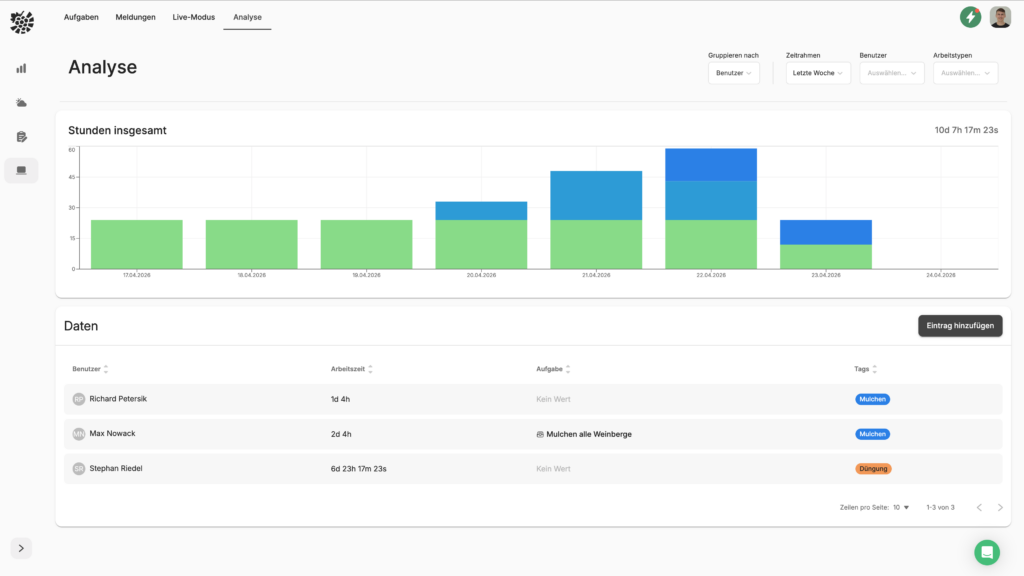
With the function Analyse Can you evaluate recorded working hours in detail and break them down by Employees as well Types of work analyse
Access to Analysis
To call the function:
- Navigate to Management
- Open the tab Analyse
There you will find all times recorded in VineForecast.
Time tracking is generally carried out during daily operations via the Live Tracking.
More on live tracking:
Structure of the Analysis View
The analysis consists of two areas:
Top view (graphic)
- Visualised when what activities were carried out
- Shows, which employees At what time did you work
Bottom view (table)
- Contains all time entries in a structured form
- Detailed overview of all recorded datasets
Filter options
You can customise the display via the filter bar:
- Filter by employee
- Filter by job type
- Set timeframe
- Combination of multiple filters possible
This is how you can analyse specifically:
- How many hours an employee worked
- The amount of time spent on specific activities
Edit or add entries
Times are not always recorded correctly via live tracking (e.g. if tracking was not stopped). Therefore, you can adjust entries afterwards at any time.
Manually create entries
- Click on Add entry
- Record
- Employee
- Date
- Activity
- Duration (hours & minutes)
Edit or delete entries
- Select an entry in the table
- In the open window you can:
- Edit entry (Adapt data)
- Delete entry
Using the analysis
With the analysis feature, you can:
- Evaluate working hours transparently
- To better plan and control activities
- Understanding time spent per task
- Make informed staffing decisions