
You can easily import your fields from your field management programme. If you have just registered, you will probably see the following page:
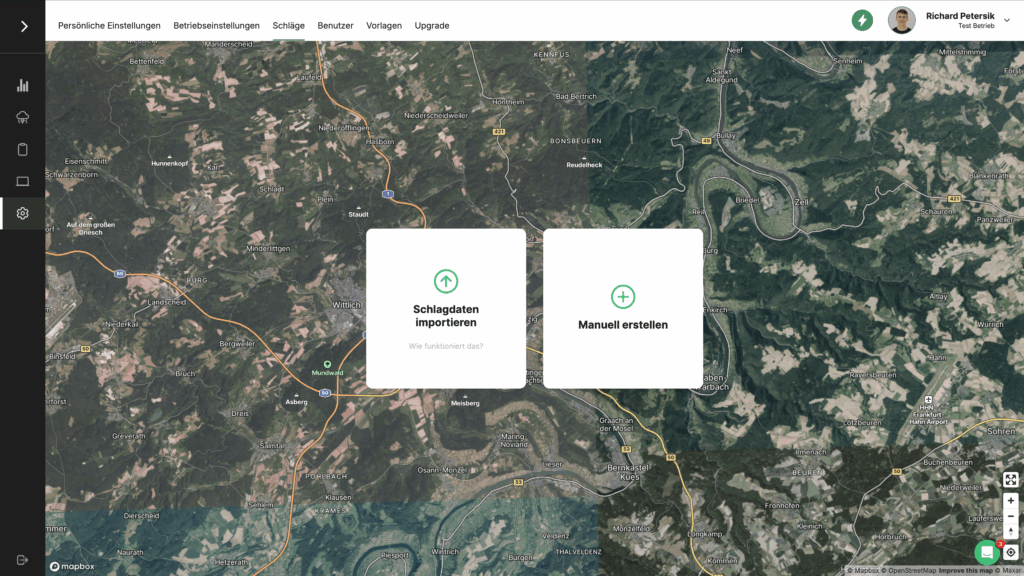
On the page shown above, select "Import shapefiles" from. So far you can import your vineyards almost everywhere in Germany and Austria. Click on the button with your federal state to get instructions for your region:
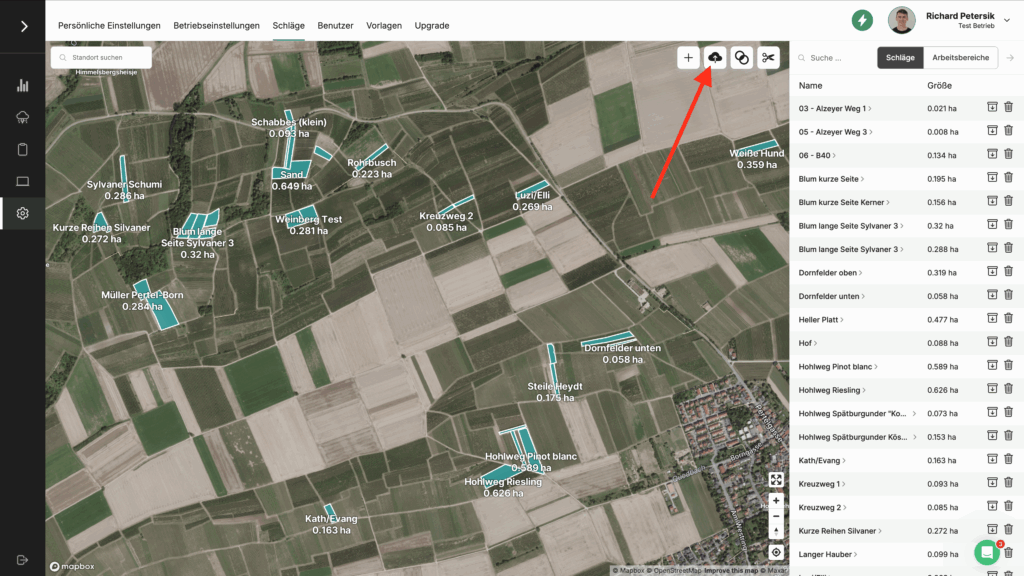
If you are no longer on the site or have already imported shots from VineForecast, then follow this path: Navigate via Settings -> WorkspacesOn the top right of the map, you'll find a button that looks like a cloud (see screenshot below). Click this button. A window will then open allowing you to select your import file.
After selecting your import file, a window will appear allowing you to choose which areas you wish to import. Areas already present in the system will be removed from the selection. Whether this is the case, and for how many, is displayed at the top of the window.
If you want to import all new surfaces from the file, simply click on the button labelled "Import all strokes".
If you only want to import a selection of strikes, you can specifically select areas on the map or use the selection menu at the top and then click "Import selected strikes".