VineForecast is used by many users, especially on mobile devices. Read this article to quickly find your way around the mobile app. In order to use the mobile app, you should create an account via our website, as registration via the app is not possible.
1. download the app 📱
Download the VineForecast app on your smartphone or tablet. The following links will take you directly to the corresponding app for Android or iOS.
2nd menu
The menu is similar to the desktop version. In the bar at the bottom you will find the main pages Overview, forecasts, impact file, management and Settings. The subpages are displayed at the top as a tab bar. Click on the individual names to go to the individual subpages.
3. Record work
Start tasks
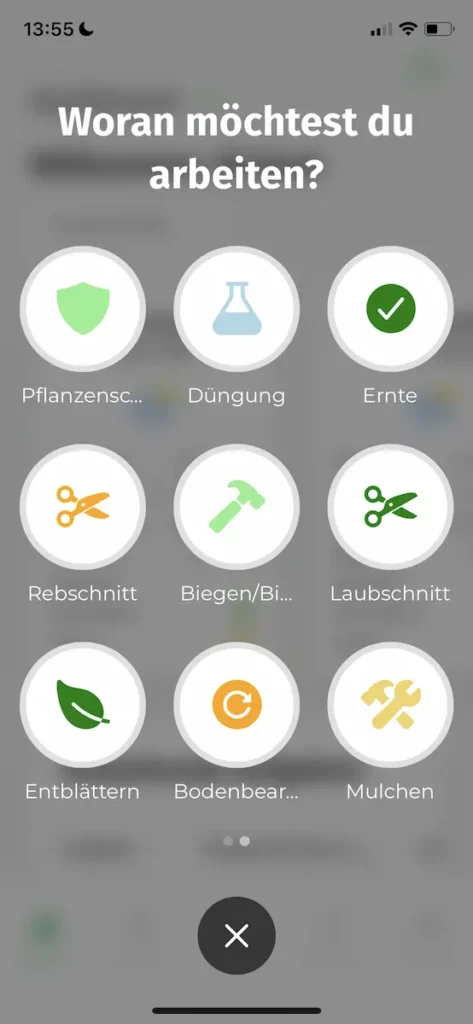
To start a task assigned to you, simply click on the button in the Overview area. Start work and select a task there. The number at the top right of the button shows you whether you currently have an assigned task. If you do not see a task after clicking, then either you have not yet been assigned a task or it is not currently set to "Active". Find more information about planning tasks here.

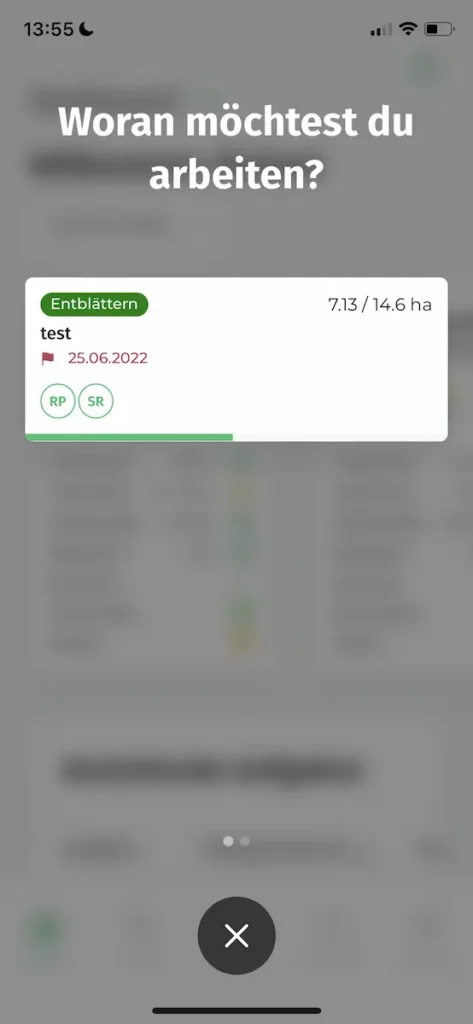
Start live mode
In addition to tracking a pre-planned task, you can also simply start tracking directly without having to create a task. If no task is currently assigned to you, you should click on the Start work immediately see the different work types for tracking. If you have stored active tasks in the system, click on the button Start work and swipe once to the left.