
Registration
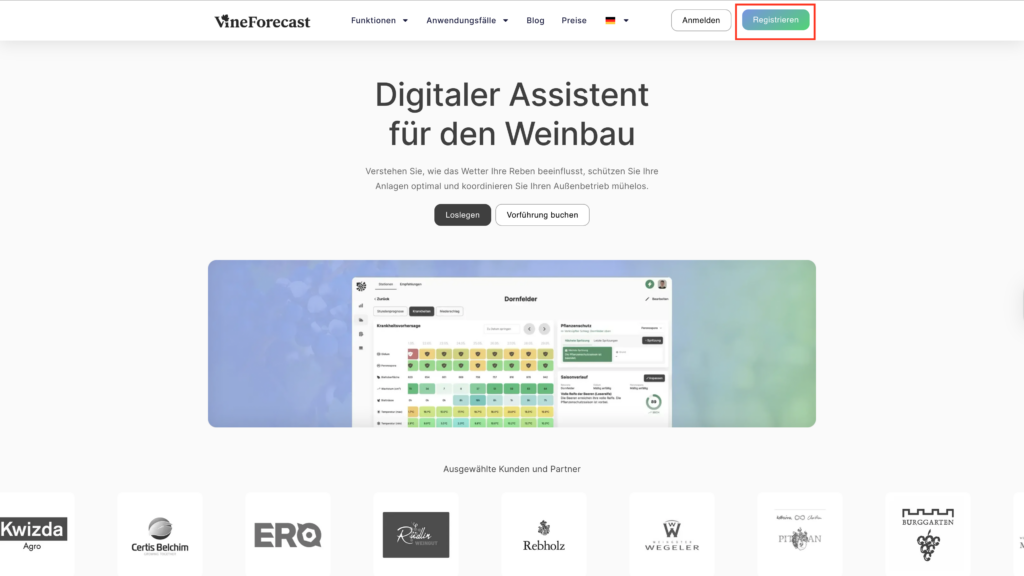
First, call the website www.vineforecast.com Off.
Ideally, the registration should be carried out by the person who will later administer the network.
- Click on Register.
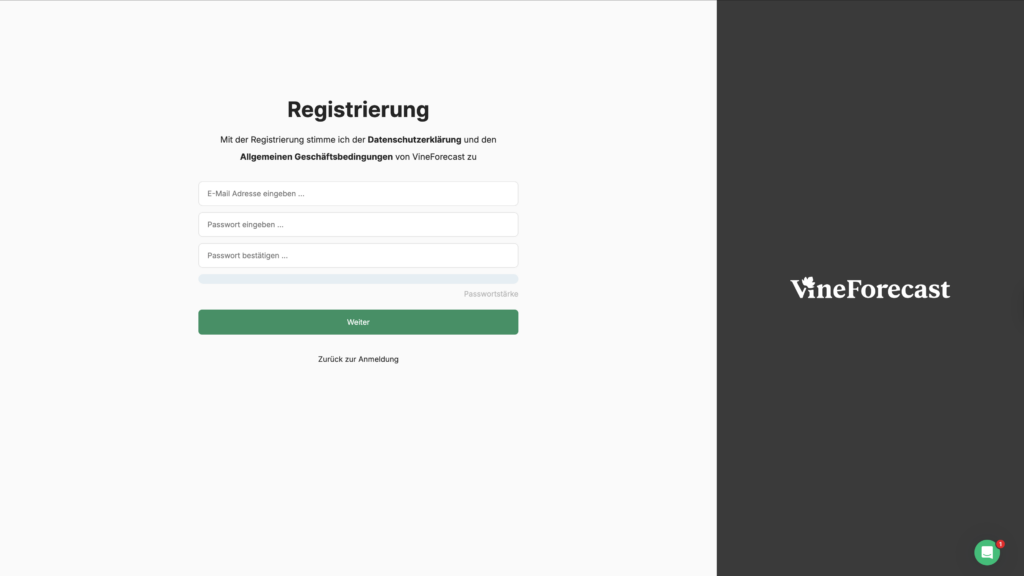
- Enter the required user data.
Important notice regarding the email address:
Use a Neutral email address (no site-specific address). This can later be shared with other network participants, meaning several people can manage, create, or edit stations. For example, create a free email address with providers like Gmail or web.de.
- Set a password.
- Confirm your inputs.
2. Activate account
After registration, you will receive an email to confirm your account.
- Open the e-mail.
- Click on the activation link provided.
3. Selecting the appropriate package
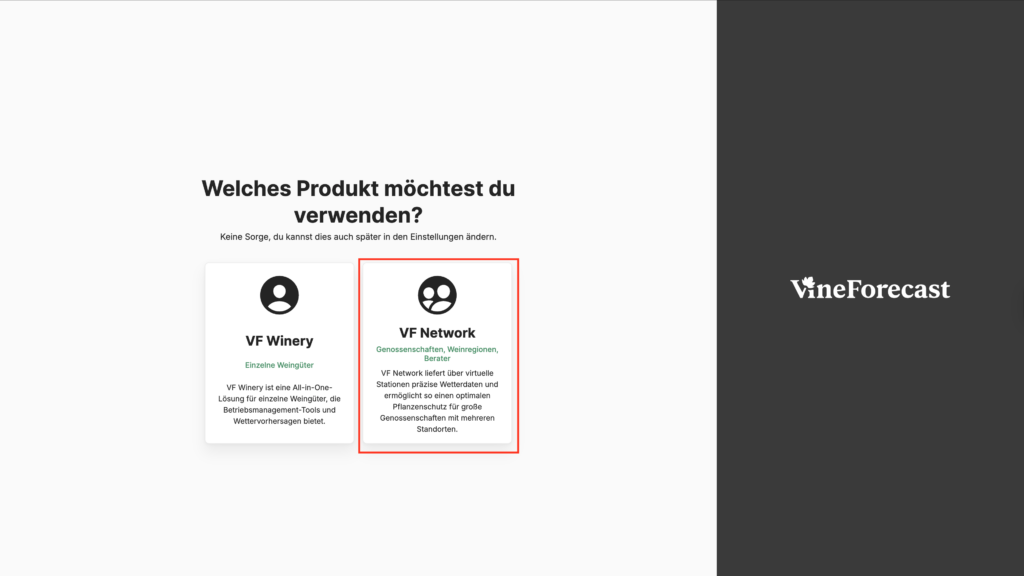
After activation, you will be taken to a selection page with two options:
- Winery
- Network
Please choose here Network from.
4. Enter network information
In the next step, an input form will appear.
- Wear in the field Company name a clear designation for your network.
(e.g. name of the group or region from which the network is composed)
Further details are usually not crucial for network customers.
5. Application start
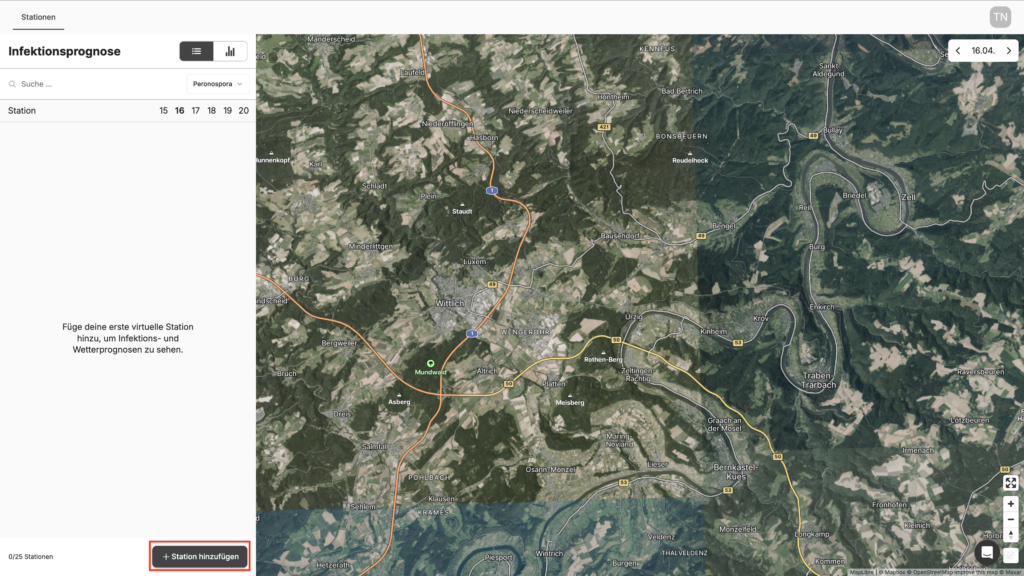
Once setup is complete, you will be taken directly to the application.
- You can start now. To create network stations.
- By default, you have an allocation of 25 network stations available.
6. Administration and Collaboration
The creation and management of the stations can be done:
- through you as an administrator or
- by further users to whom you provide the access details
Alternatively, you can also invite users in the Settings -> Users section.
Important notice:
As there are currently no multi-organisation accounts, it is still recommended to use a Neutral email address to use.
Using a company email address may result in it being blocked for other accounts later on.
7. Booking the combined package for network participants
All businesses that are part of the network must subsequently Combo package at VineForecast book
- The booking is made via the respective own business account.
- First, please log in with your operating datain your business account (not the network account).
- Go to the menu "Settings" → "Upgrade" and select "Combo" in the top right..
- Next, select the appropriate package and complete the booking.
Once the booking is made, the operation will automatically be recognised in the background as a participant of the package deal.
Businesses that have already registered in advance with VineForecasts as part of a combined package can be assigned by VineForecast to the relevant network and will then receive background access from us to the network they have already created.